
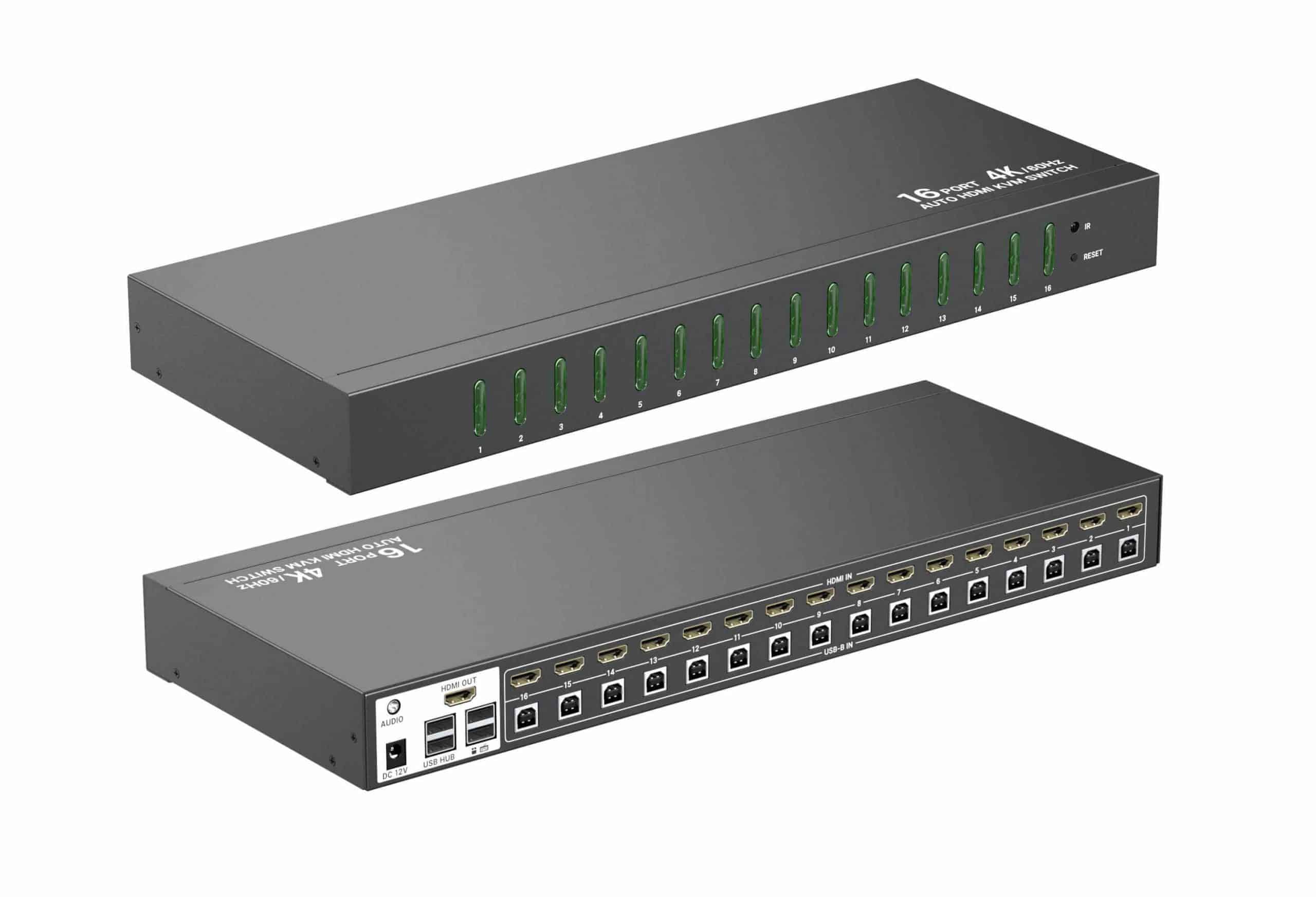
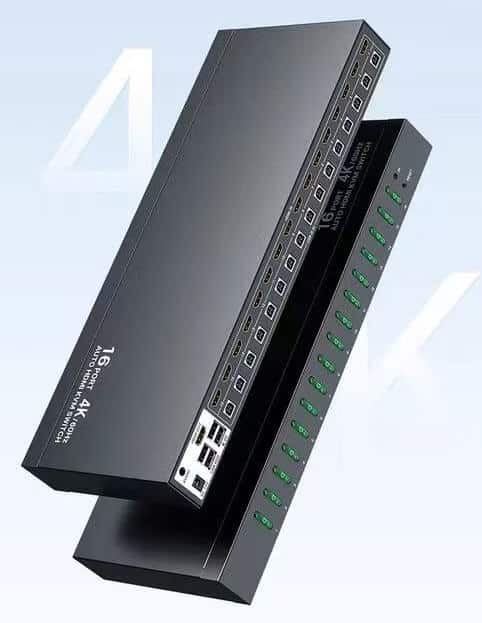

4k60hz 3840*2160@60Hz 18Gbps HDMI KVM 16×1 Switcher,Support IR remote control,Buttom control, Audio, Auto scan


4K60Hz HDMI KVM Switch 16 in 1 Out with IR Remote + Rack Mount Ears + USB Hub,Audio
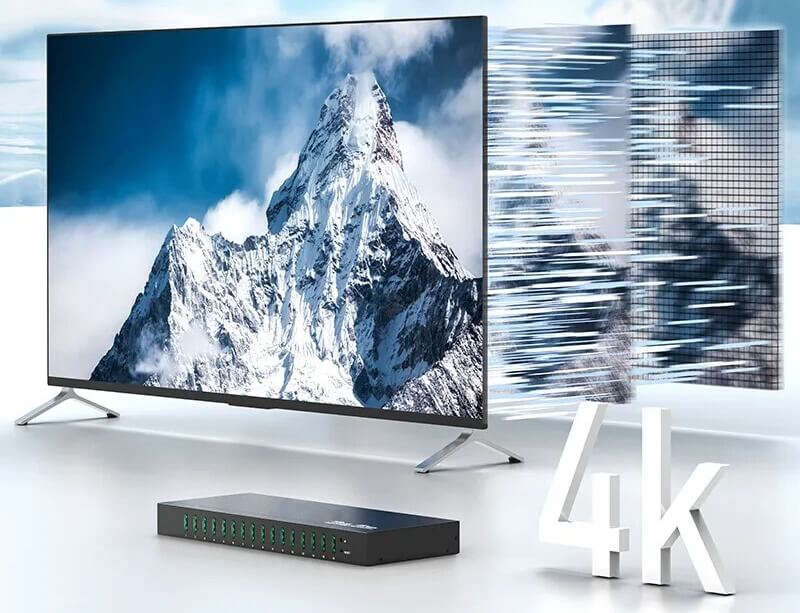
The automatic HDMI KVM switcher supports 4K@60Hz with high resolution and high refresh rate. A single KVM switcher allows 16 HDMI input sources to share keyboards, mice, and monitors. The panel key and desktop controller can be used to quickly switch input sources. Say goodbye to repeated plugging and unplugging. Mainly used for security monitoring, office meetings, game studios and other sites.
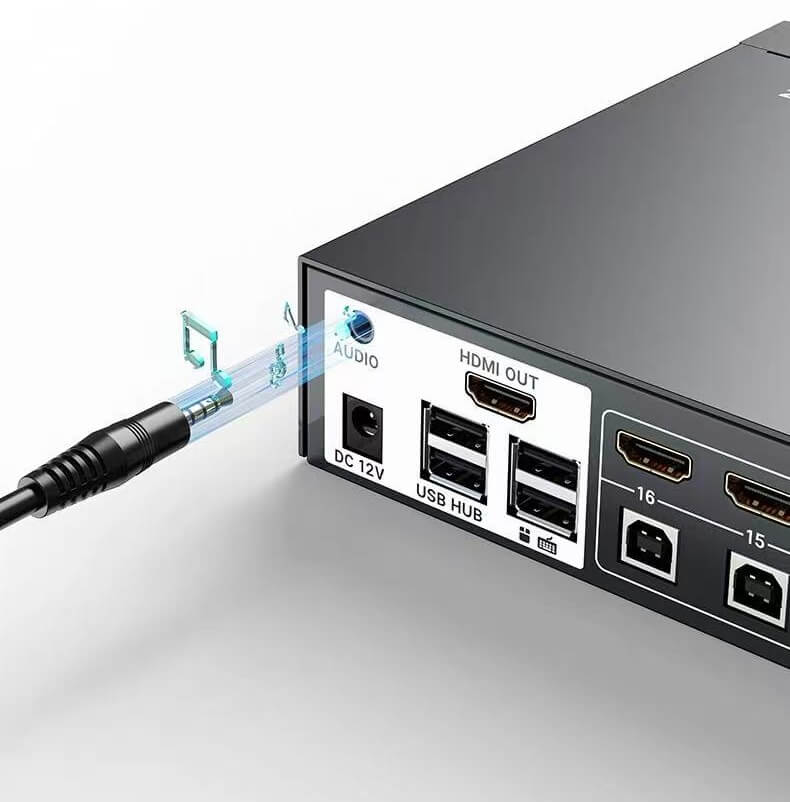
Support 4k@60HZ HD resolution –Support button, hotkey switch, wireless IR remote and auto-switching mode —Support USB 2.0 for any devices. –Support hot board plug, Plug and play, no driver installed —Industrial grade, high quality 16 port KVM Switcher with metal shell supports EDID storage.
Compatible with domestic systems, WINDOWS, Linux, Mac, etc.
Support button, hotkey switch, wireless IR remote and auto-switching mode.
No need to install any driver software, plug and play.
Control via IR remote controller,Button, HotKey,Auto Scan


Packing list
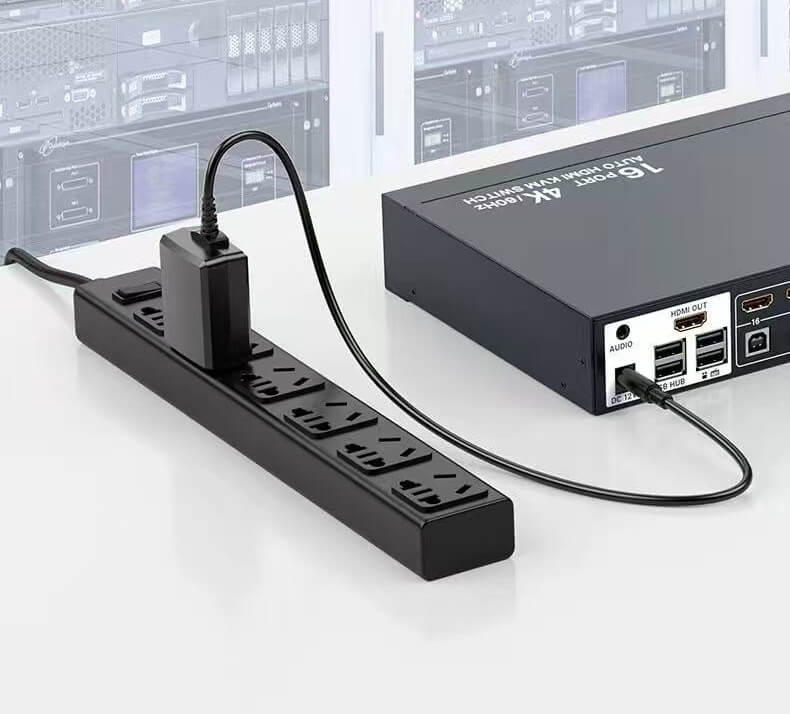
16 Port Rack Mount KVM 4K60Hz *1, IR Remote Control *1, User Manual *1, DC12V2A Power Supply *1, Rackmount Ears & Screws *2 set,
HDMI KVM Cable 1.5m/5ft *4 ,HDMI KVM Cable 1.8m/6ft *8, HDMI KVM Cable 2.5m/8.2ft *4,
USB KVM Cable 1.5m/5ft *4, USB KVM Cable 1.8m/6ft *8, USB KVM Cable 2.5m/8.2ft *4

Serial turn on code:0xa5 0x5a 0x41 0xcc
Viewer scanning time
After powering on, the LED display defaults to the autoscanning seconds. The Min / on LED indicator is not lit. Press the Min / button to display the auto-scanning minutes, at this time, the Min / on light is lit.
Scan time setting
- Set/Esc: Set the entry / exit scan time
- “+”“-” Set scan time plus / minus
- Min/Set: Set the scan time between minutes and seconds (when the green LED is always on, it means that the current status is minutes)
- Min/On: Green LED Minutes indicator
Example: if the user wants to set 18 seconds automatic scanning time, first press Set / ESC. At this time, the LED light flashes, then press “+” until the LED displays 18, and then press the Set / ESC button. When the LED lights does not flash, the setting is successful. If the set time is minutes, press Set / ESC first and then Min / Set. At this time, the green LED lights is always on. Then the user can set the automatic scanning time, press Set / ESC, the LED lights does not flash and the green LED is always on. At this time, the scan time is set to minutes.
Signal tracking status description
A No matter the user first plugs in any input port, it will automatically track and identify any port. When the input port reaches more than 2 hosts, it does not track
B: When the user input port reaches more than 2, the user unplugs the port that displays the working picture, it will jump to the next online port in order
Code for enabling/disabling serial port automatic switching function:
0xa5 0xa5 0x31 0xcc
Note:
- When the automatic switching function is enabled,it will automatically enable the function that can’t be switched between ports that are not connected (key/infrared/serial port,can only be switched between ports that are connected). If you need to disable the function of not being able to switch ports without access,send the serial port code:0xa5 0x5a 0x21 0xcc (this command is only valid when the automatic switching function mode is enabled).After disabling it,press the button/infrared/serial port to switch between any port.
- When the automatic switching function is turned off,the function that can’t be switched between ports that are not connected(it can switch between any port by pressing the button/infrared/serial port)will be automatically turned off. At this time,the command 0xa5 0x5a 0x21 0xcc is invalid.


