
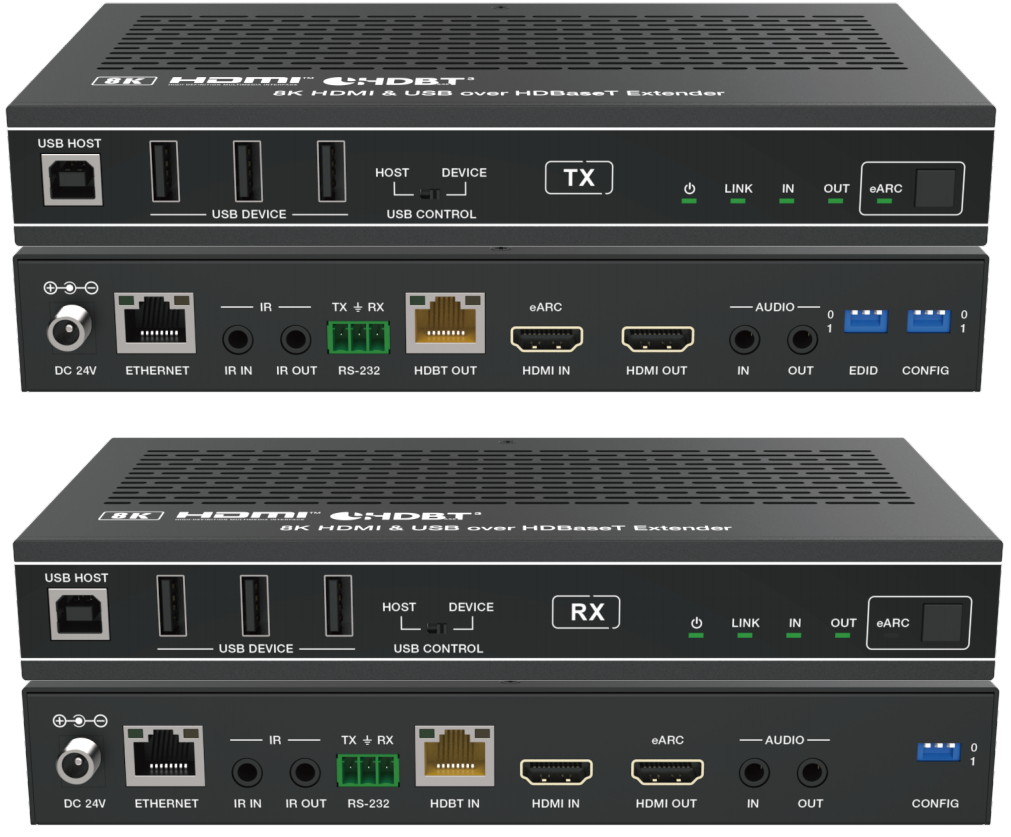


Overview
This 8K HDMI & USB over HDBaseT Extender can extend uncompressed HD/UHD video and audio signals, eARC/ARC, RS-232, bi-directional IR,1GbE Ethernet and USB2.0 signals up to 90m/295ft via a single CAT6A/7 cable.
Video resolution is up to 8K@30 4:4:4 10bit, 4K@120Hz 4:4:4 10bit, 4K60Hz 4:4:4. It supports eARC/ARC from RX’s HDMI output pass-through to TX’s HDMI input or de-embedding to TX’s HDMI output port.
Besides, it supports USB 2.0 signal transmission (Host/Device is configurable) and bidirectional POC function.
The Extender offers the most convenient solution for HDMI extension via a single CAT cable with long distance capability, and is the perfect solution for home/commercial application.


Step One: Proper Setup
Transmitter (TX) Setup:
- Power: Ensure the transmitter is connected to a power source.
- Input Source: Connect your input source to the HDMI IN port.
- Ethernet Connection: Use a CAT6A/7 cable to connect the HDBaseT output port on the TX to the HDBaseT input port on the Receiver (RX).
Receiver (RX) Setup:
- Ethernet Connection: Connect the CAT6/7 cable from the TX to the HDBaseT input port.
- Output Source: Connect the output source (e.g., display) to the appropriate port on the RX.
Step Two: Configuration Settings
If everything is connected and powered but you still aren’t getting an image or if both the yellow and green LED lights on the HDBaseT ports are off, you may need to adjust the settings on the unit and/or the output display.
Transmitter (TX) Settings:
- EDID Switch: Ensure the EDID switch on the TX is set to the correct configuration for your setup.
The DIP switch is used for EDID settings. (Set to 000 by default.)
[DIP]=000:
Copy RX HDMI OUT port sink EDID
(Note: If there is no TV connected to the receiver, it will copy the EDID of the local loopout video.)
[DIP]=001:
HDMI 1080p@60Hz, Audio 2ch PCM
[DIP]=010:
HDMI 4K@60Hz 4:4:4, Audio 2ch PCM
[DIP]=011:
HDMI 4K@60Hz 4:4:4, Audio 5.1ch PCM/DTS/DOLBY
[DIP]=100:
HDMI 4K@60Hz 4:4:4, Audio 7.1ch PCM/DTS/DOLBY/HD
[DIP]=101:
HDMI 8K@30Hz 4:4:4+4K@120Hz 4:4:4, Audio 2ch PCM
[DIP]=110:
HDMI 8K@30Hz 4:4:4+4K@120Hz 4:4:4, Audio 5.1ch PCM/DTS/DOLBY
[DIP]=111:
HDMI 8K@30Hz 4:4:4+4K@120Hz 4:4:4, Audio 7.1ch PCM/DTS/DOLBY/HD
Display Settings:
- Video Processing: Enable any necessary video processing settings on your display. For example, if you are extending a 4K120 signal to a TV, enable Game Mode to handle the higher refresh rate.
Additional Recommendations:
- Use shielded CAT6A or CAT7 ethernet cables within the specified distance limitations.
- For transmitting 8K and 4K120 signals, use an HDMI 2.1 cable.
- If the HDMI cable length exceeds or is near 50 feet, use an active optical cable for optimal performance.


