
4K30Hz 4×4 VideoWall Splicer Enjoy large screen


4K 4×4 VideoWallController+1×16 Splicer
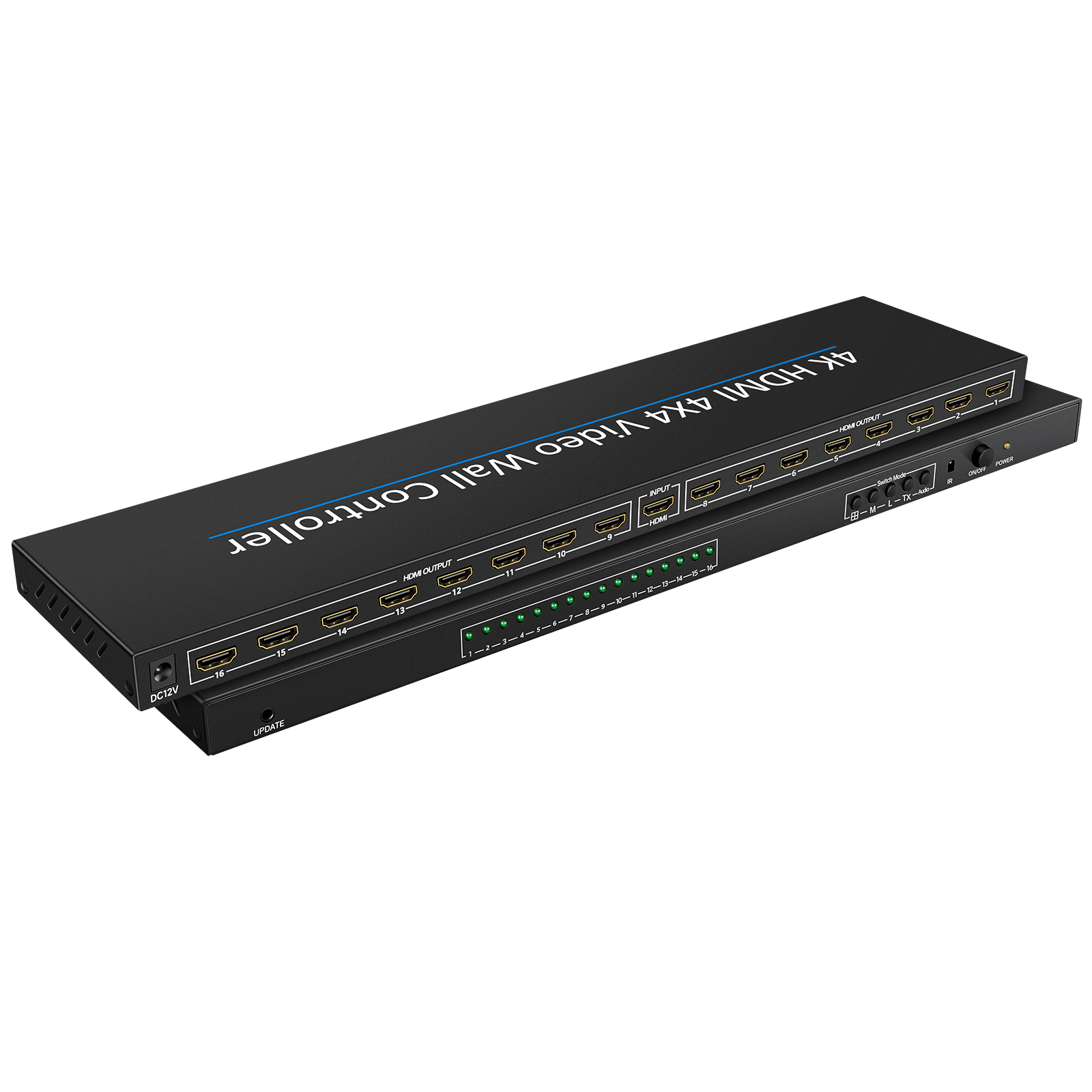
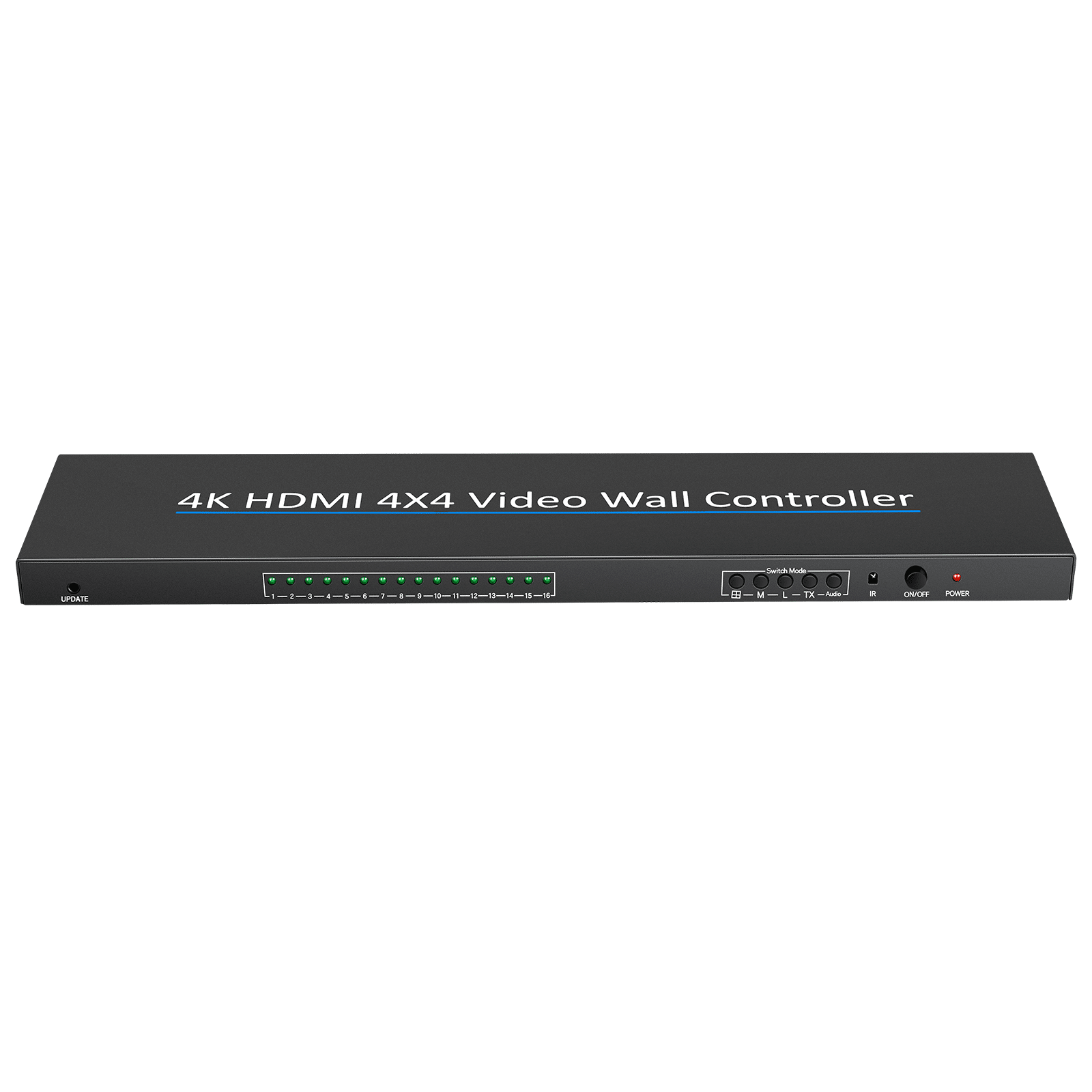
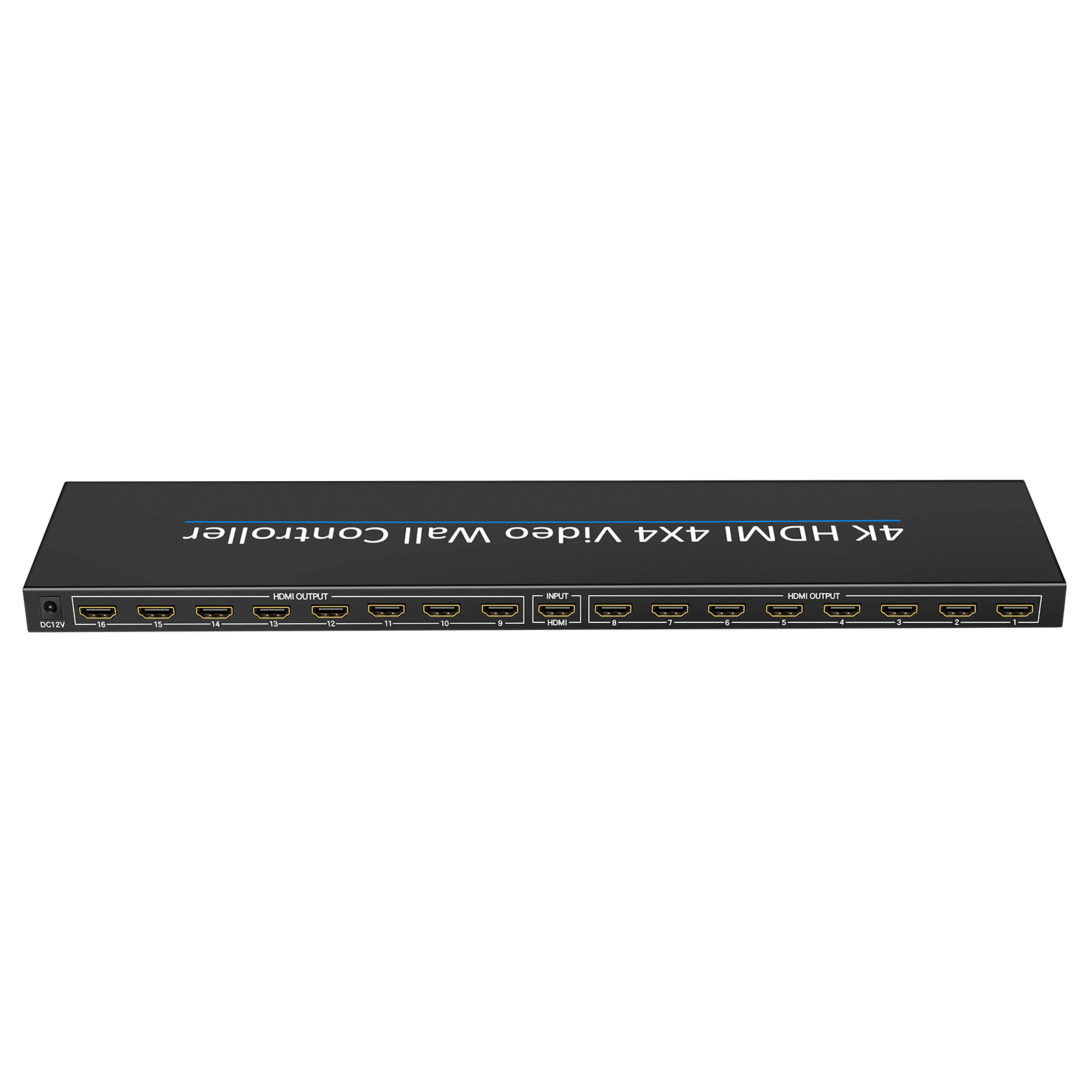
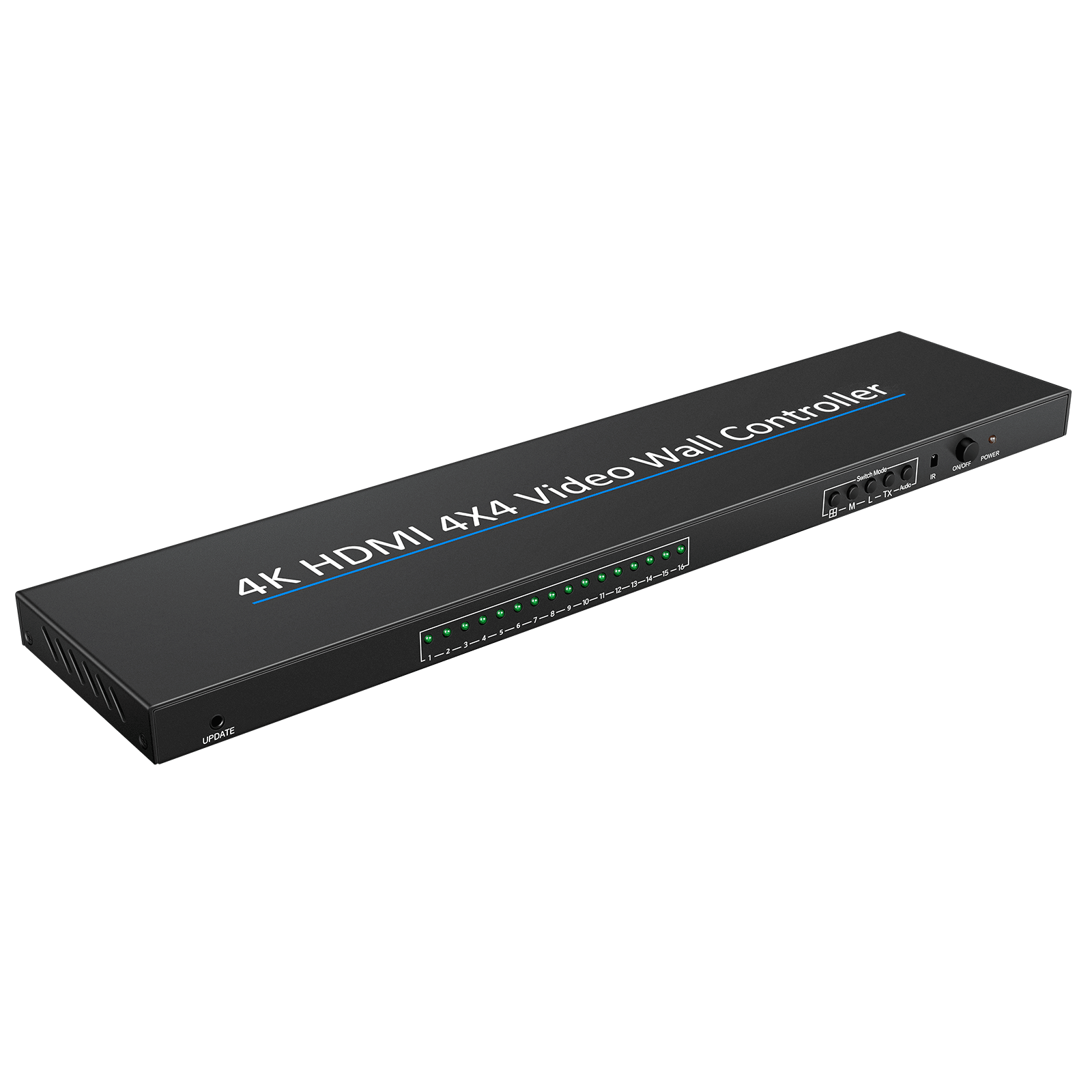
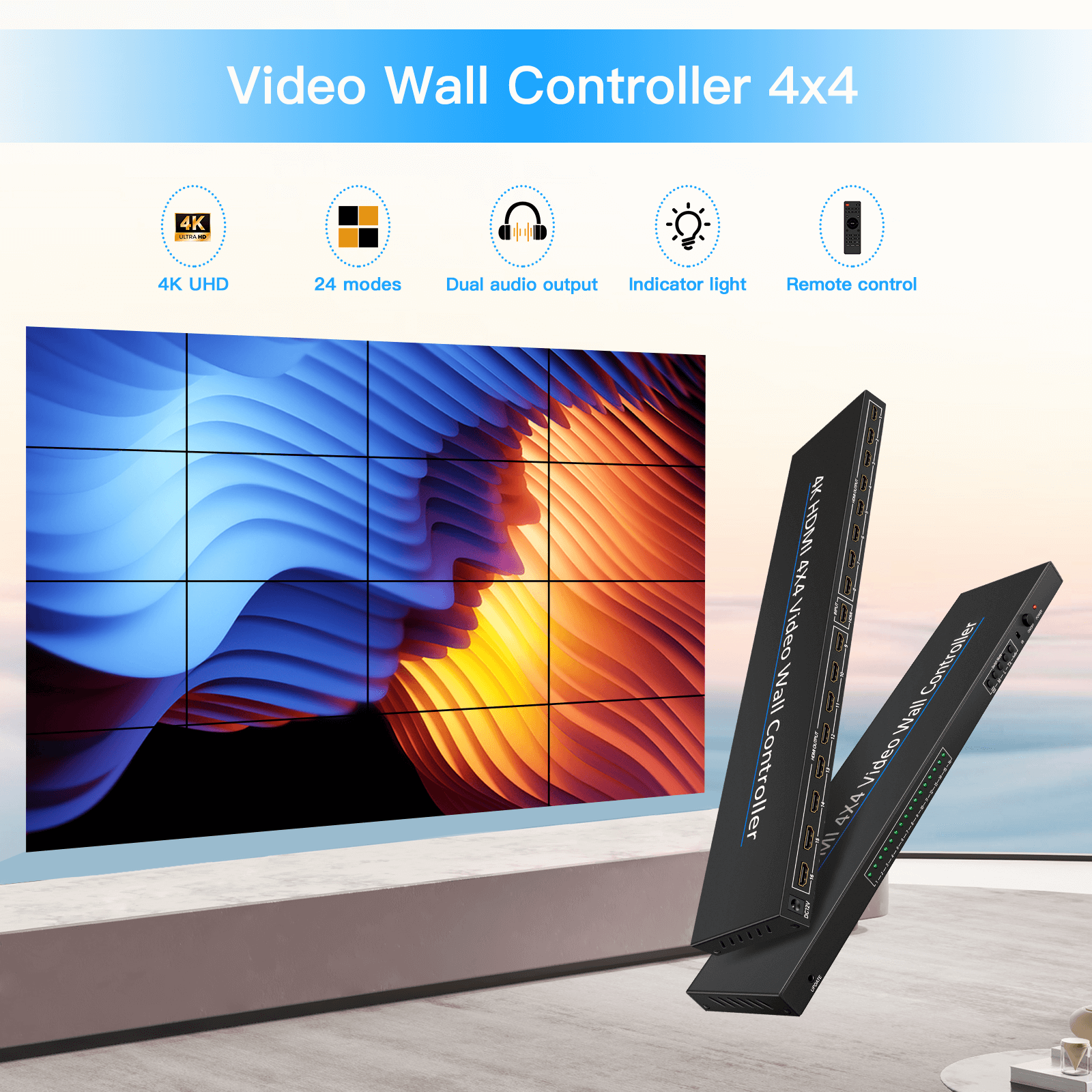
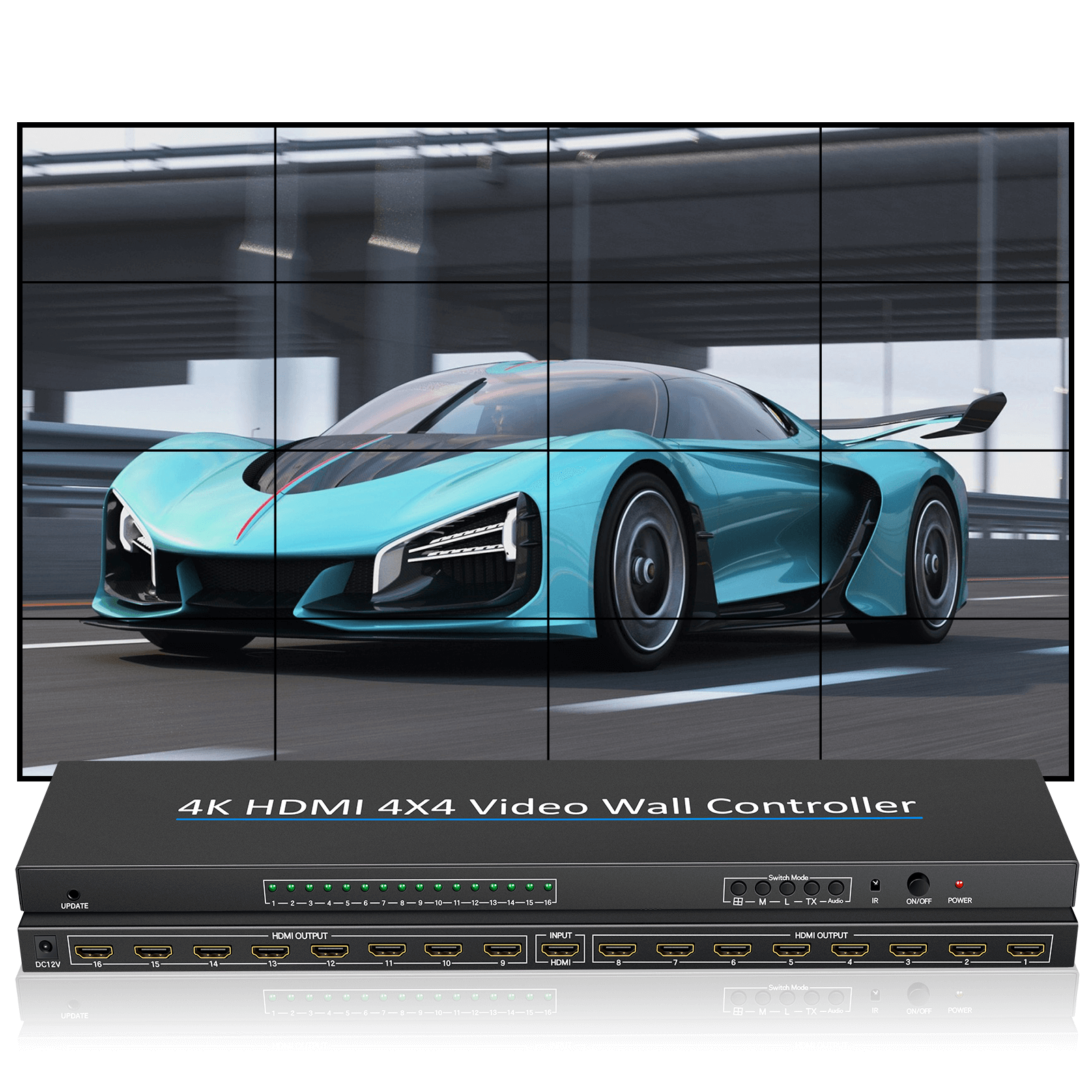
This 4X4 Splicer supports 1 HDMI input and 16 HDMI output. The main function of the Splicer is to divide a full HDMI image into 16 blocks and distribute them to 16 video displays, complete with 16 HDMI HD video display units to form a large dynamic image screen. Supports multiple splicing modes, supports cascading.
In addition to the stitching patterns shown above, the following stitching patterns are supported:2×5,5×2,2×6,6×2,2×7,7×2,3×5,5×3

Features
* 16-way HDMI output
* 3840x2160P30HZ input and output are compatible
* multiple splicing support, easy operation, Plug and play
* Support six resolution outputs:1280×720@60Hz,1800×1350@60Hz,1920×1080@60Hz,1920×1440@60Hz,2560×1600@60Hz,3840×2160@30Hz

Operation Special Note (very important) :
- HDMI cable must use 19 + 1 full needle of wire.
- The use of image flipping (each image can be flipped independently) :
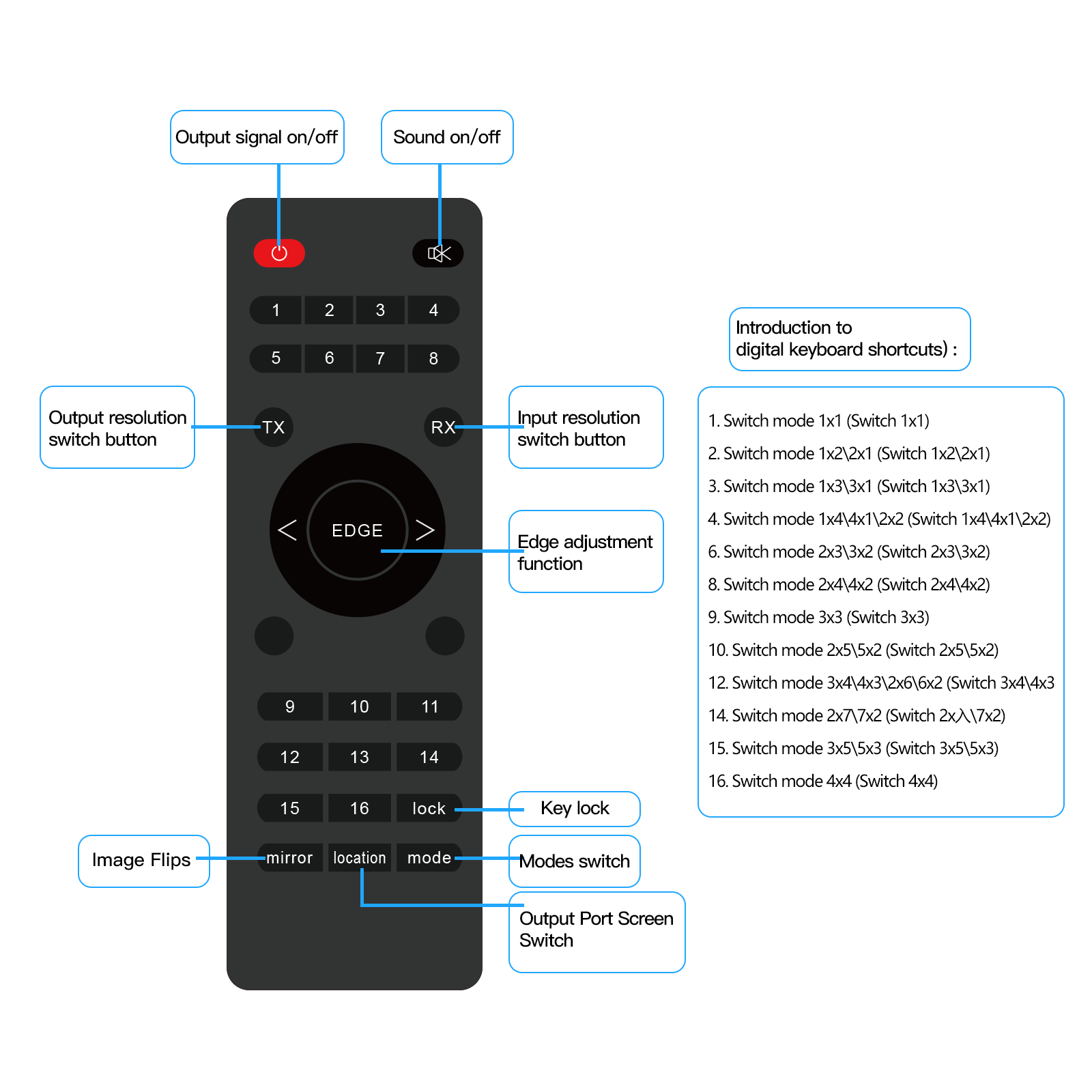
Step 1, press the remote control“Mirror” button, wait for the OSD in the upper left corner of the image to display“Mirror”;
Step 2, use the number button to operate, for example, you want to flip the sixth screen, you press the number“6” button. When you’re done, remember to press the“Mirror” button again to exit the operation.

- Switch the output port screen: first, press the remote control“Location” button, wait for the OSD in the upper left corner of the screen to show“Location”; second, use the digital keys to operate, for example, you want to select the 6th screen output, you press the number“6” When you’re done, remember to press the“Location” button again to exit the operation.


