
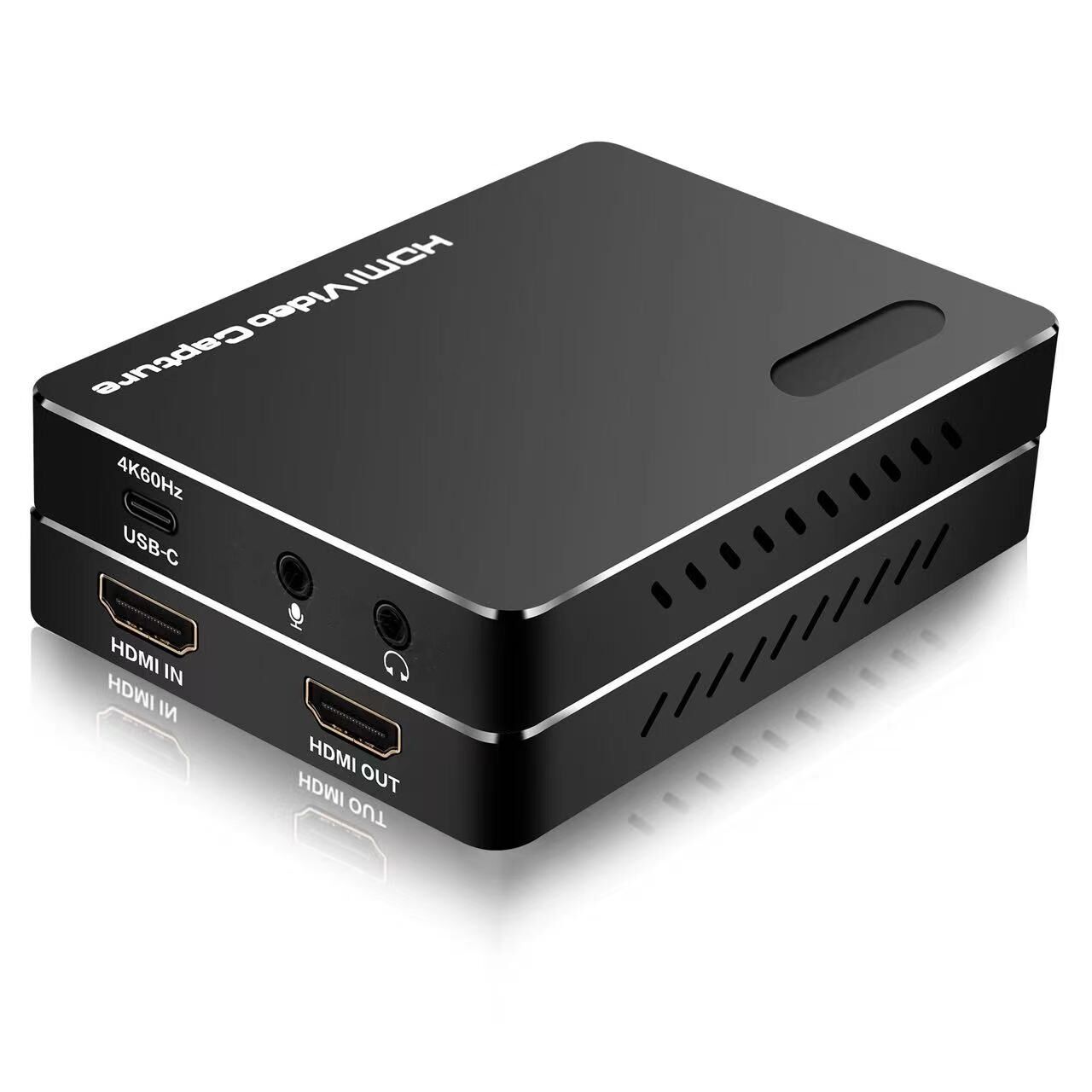
4K HDMI to USB C Video Capture Card Dongle for OBS Capturing Gaming Live

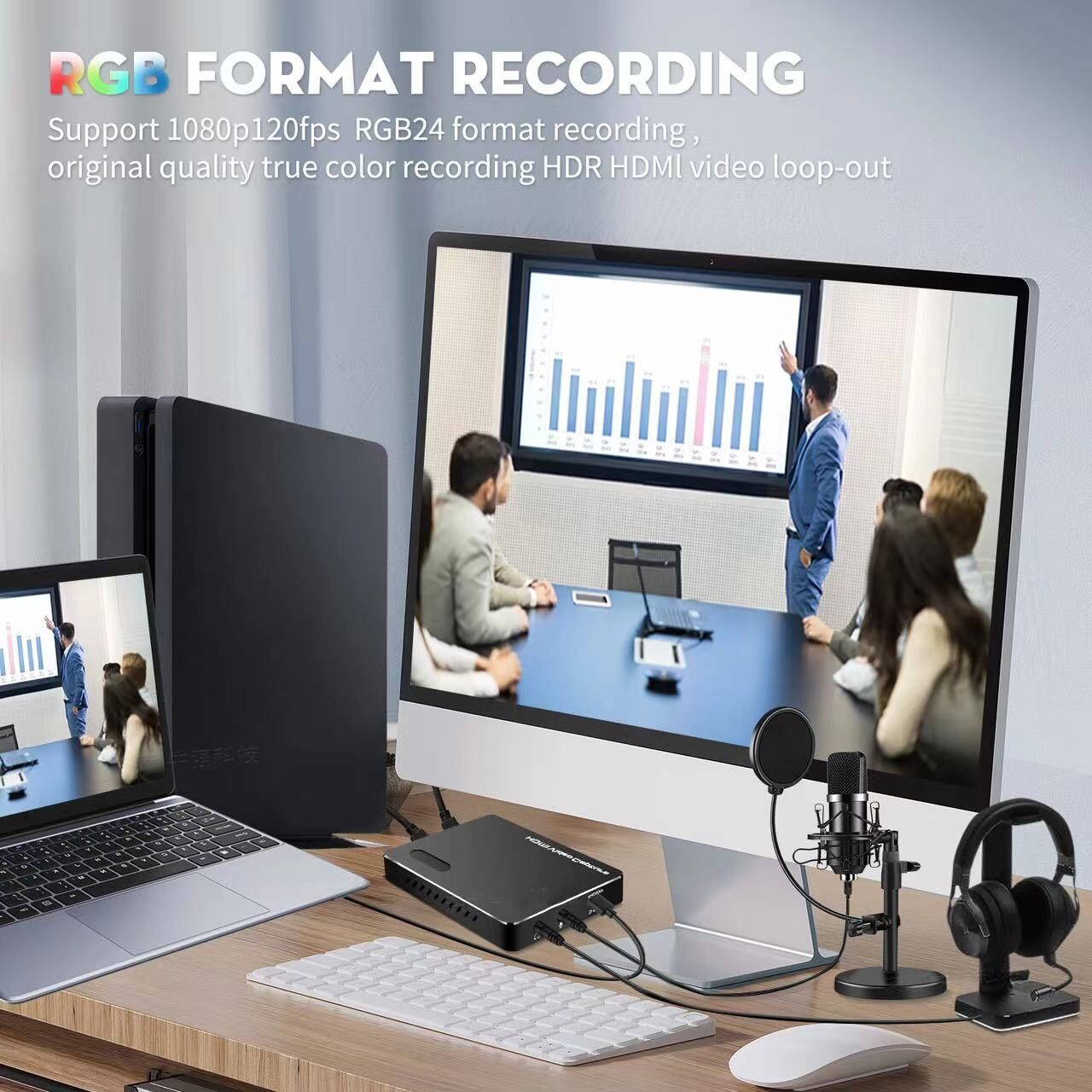
With the popularity of Live streaming, conference rooms, Gaming record, the HDMI Video capture is an ideal recorder for recording/capture solutions.

Features:
It doesn’t need to install a driver, and it is truly PnP
Support MJPEG/YUY2/NV12/I420/XRGB/P010
Support OBS 、Potplayer 、VLC 、Vmix ……
Support UVC\UAC
It can capture one single HDMI(4K60Hz) video signal
Support HDMI 2.0b and HDCP 2.2
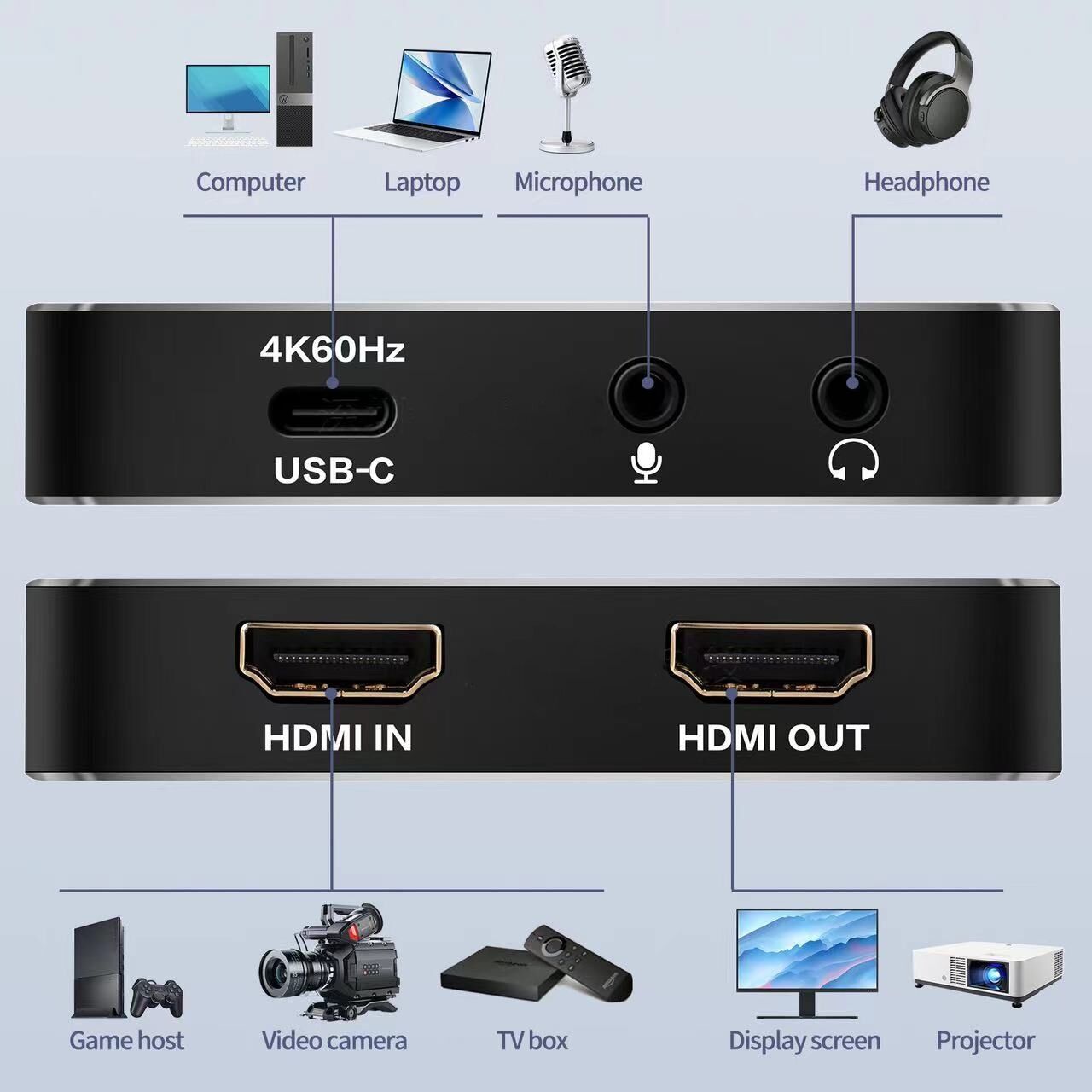
Support MIC input and audio output
Support HDMI loop output 4K60Hz
Support USB 3.2 (5Gbps/4K60Hz)
Support HDR

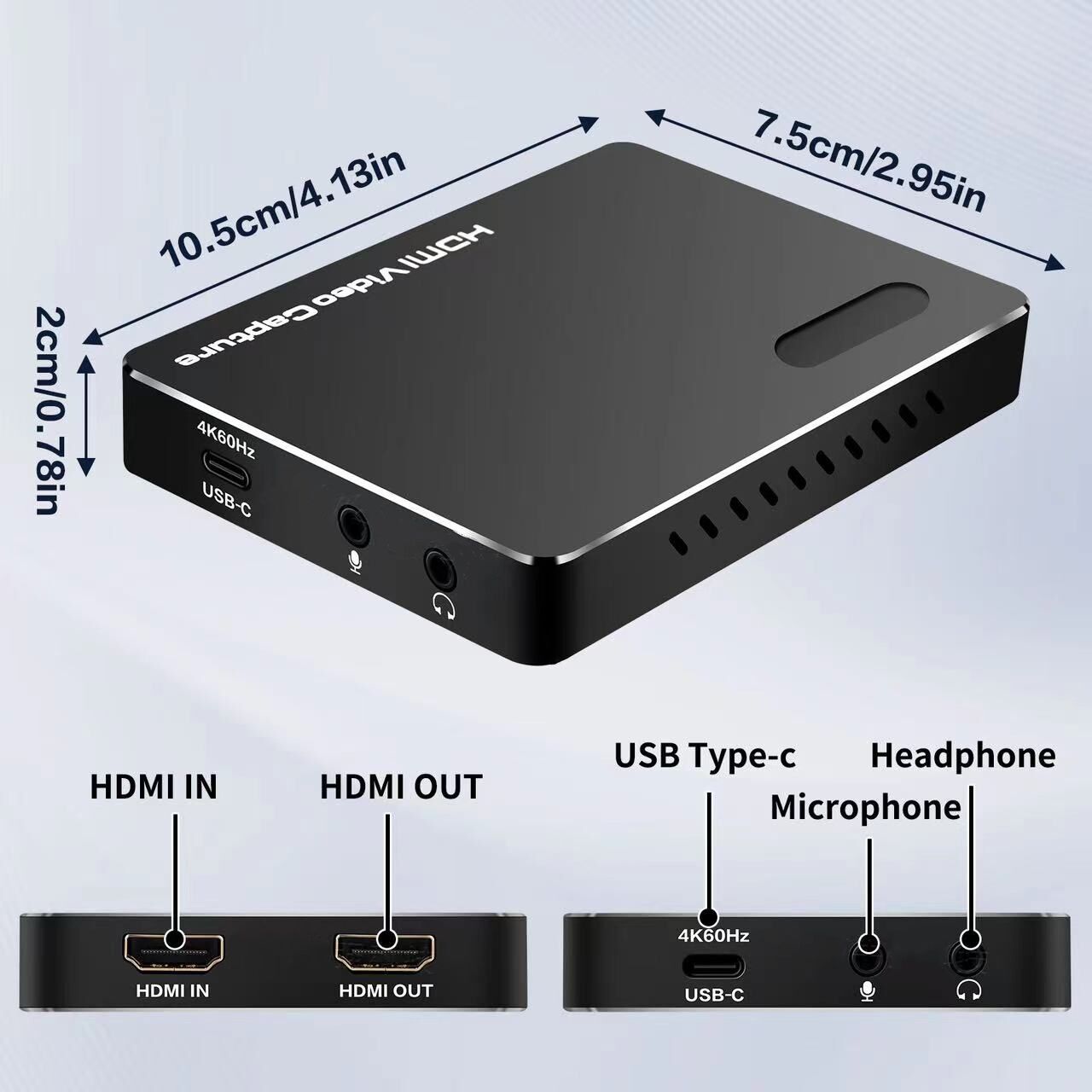
Interface

Test video
How to use OBS to record video ? Check out the below steps for reference.
Step 1: Click + Choose: Video Capture Device

Step 2: Create a new name

Step 3: Device Choose “USB3.0 HD Video Capture”

Step 4 :Resolution /FPS Type : Choose “Custom”

Step 5 : Resolution : Choose “1920×1080”
Notice :

Step 6: Audio Output Mode: Choose “Output desktop audio (direct Sound)”

Step 7: ✔ USB custom audio device
Step 8: Audio Device: Choose “USB 3.0 HD Audio Capture”

Step 9: Click: “Start Recording”


