
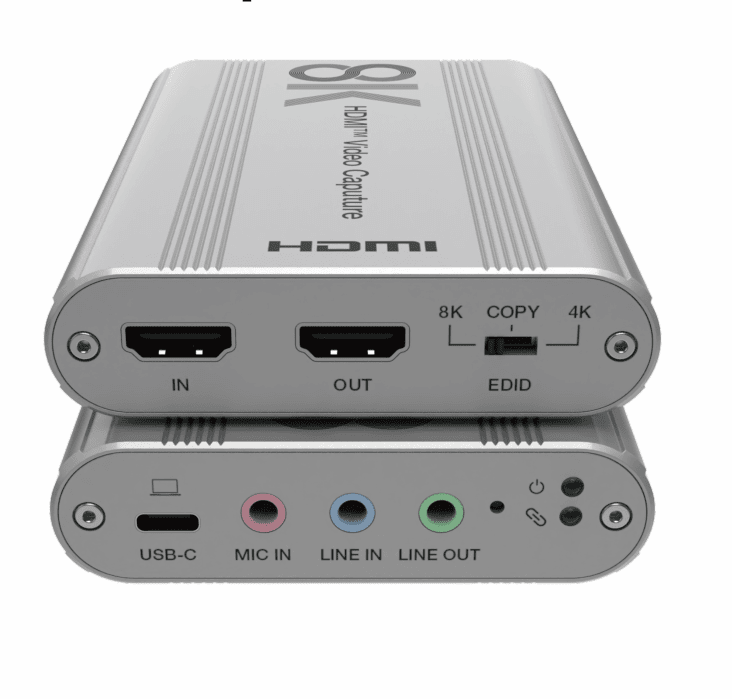
7680x4320p 60Hz 8K HDMI to USB C Video Capture Card Dongle for OBS Capturing Gaming Live,downward compatibility

With the popularity of Live streaming, conference rooms, Gaming record, the HDMI Video capture is an ideal recorder for recording/capture solutions.
This product has the features of superior performance, superior compatibility,easy to carry and simple installation. It can capture HDMI™ video input signal, video resolution up to 8K@60Hz, 4K2K@144Hz.
It supports microphone/linear audio input and loop output, compatible with HDMI™ digital mixing audio capturing. The data transfer rate of USB 3.2 Gen 1 signal is up to 5Gpbs.
The products conforms to UVC and UAC standard. Simple plug and play, no driver download and installation setting required.

Features:
☆ HDMI™ video and audio streams over USB 3.2 Gen 1
☆ Supports HDMI™ input & loopout up to 8K@60Hz, 4K2K@144Hz with HDR
☆ Captures 4K60fps, 2560×1440@144fps with uncompressed quality
☆ Mix HDMI™ mic and line-in audio with precision to output via 3.5mm analog output ports and USB capturing port
☆ Works on multiple operation system platforms (Windows 7/10/11, Mac OS and Linux OS)
☆ Compatible with USB 3.2 Gen 1, transmission rate up to 5Gpbs
☆ Compatible with OBS, Streamlabs, Vmix, Zoom, Microsoft Teams, and more
☆ Supports YUY2, NV12, I420, MJPEG video capture format
☆ Simple plug and play, no driver download and installation setting required
Package Contents
① 1× 8K HDMI™ to USB 3.2 Gen 1 Video Capture Card
② 1× USB Cable (Type C, Male to Male, 1m)
③ 1× User Manual

Specification
| Technical | |
| HDMI™ Compliance | HDMI™ 2.1 |
| HDCP Compliance | HDCP 2.3 |
| Video Bandwidth | 48Gbps |
| USB Bandwidth | 5Gbps |
| Video Resolution (Input & Output) | Up to 8K@60Hz, 4K2K@144Hz * All available resolutions are shown as follow. |
| Color Space | RGB, YCbCr_4:4:4, YCbCr_4:2:2, YCbCr_4:2:0 |
| Color Depth | 8/10/12-bit |
| HDMI™ Audio Formats | Maximum Channels: 8 Channels Sampling Rate (kHz): 32, 44.1, 48, 88.2, 96, 176.4, 192 Bitstream: Standard & High-definition |
| USB Audio Formats | Maximum Channels: 2 Channels Sampling Rate (kHz): 44.1, 48 Bitstream: None |
| HDR | HDR, HDR10, HDR10+, Dolby Vision, HLG |
| ESD Protection | IEC 61000-4-2: ±8kV (Air-gap discharge), ±4kV (Contact discharge) |
| Connection | |
| Input | 1× IN [HDMI™ Type A, 19-pin female] 1× MIC IN [3.5mm audio jack] 1× LINE IN [3.5mm audio jack] |
| Output | 1× OUT [HDMI™ Type A, 19-pin female] 1× LINE OUT [3.5mm audio jack] 1× USB-C [USB-C port, 12-pin female] |
| Mechanical | |
| Housing | Aluminum Enclosure |
| Color | Silver |
| Dimensions | 114mm [W] × 82mm [D] × 22mm [H] |
| Weight | 180g |
| Power Supply | USB Power Supply |
| Power Consumption | 5.8W (Max) |
| Operating Temperature | 0°C ~ 40°C / 32°F ~ 104°F |
| Storage Temperature | -20°C ~ 60°C / -4°F ~ 140°F |
| Operating Humidity | 20% – 80% (relative humidity, non-condensing) |
| Storage Humidity | 10% – 90% (relative humidity, non-condensing) |

All available input/output resolutions:
|
HDMI™ Resolutions | 640x480p60Hz, 800x600p60Hz, 1024x768p60Hz, 1280x1024p60Hz, 1360x768p60Hz, 1440x900p60Hz, 1440x1050p60Hz, 1600x1200p60Hz, 720x480i59.94Hz(480i59), 720x480p59.94Hz(480p59), 720x576i50Hz(576i50), 720x576p50Hz(576p50), 1280x720p50Hz(720p50), 1280x720p59.94Hz(720p59), 1280x720p60Hz(720p60), 1920x1080i50Hz(1080i50), 1920x1080i59.94Hz(1080i59), 1920x1080i60Hz(1080i60), 1920x1080p23.98Hz(1080p23), 1920x1080p24Hz(1080p24), 1920x1080p25Hz(1080p25), 1920x1080p29.97Hz(1080p29), 1920x1080p30Hz(1080p30), 1920x1080p50Hz(1080p50), 1920x1080p59.94Hz(1080p59), 1920x1080p60Hz(1080p60), 3840x2160p23.98Hz(2160p23), 3840x2160p24Hz(2160p24), 3840x2160p25Hz(2160p25), 3840x2160p29.97Hz(2160p29), 3840x2160p30Hz(2160p30), 3840x2160p50Hz(2160p50), 3840x2160p59.94Hz(2160p59), 3840x2160p60Hz(2160p60), 3840x2160p100Hz(2160p100), 3840x2160p120Hz(2160p120), 4096x2160p23.98Hz, 4096x2160p24Hz, 4096x2160p25Hz, 4096x2160p29.97Hz, 4096x2160p30Hz, 4096x2160p50Hz, 4096x2160p59.94Hz, 4096x2160p60Hz, 4096x2160p100Hz, 4096x2160p120Hz 5120x2160p50Hz, 5120x2160p60Hz, 7680x4320p23.98Hz, 7680x4320p24Hz, 7680x4320p25Hz, 7680x4320p29.97Hz, 7680x4320p30Hz, 7680x4320p50Hz, 7680x4320p60Hz | |
|
UVC Resolutions |
NV12/I420 | 3840×2160@30 and lower FPS, 2560×1440@60 and lower FPS, 1920×1080@120 and lower FPS, 1280×720@120 and lower FPS, 720×576@50 and lower FPS, 720×480@60 and lower FPS, 640×480@60 and lower FPS |
| YUY2 | 2560×1440@60 and lower FPS, 1920×1080@60 and lower FPS, 1280×720@120 and lower FPS, 720×576@50 and lower FPS, 720×480@60 and lower FPS, 640×480@60 and lower FPS | |
|
MJPG | 3840×2160@60 and lower FPS, 2560×1440@120 and lower FPS, 1920×1080@120 and lower FPS, 1280×720@120 and lower FPS, 720×576@50 and lower FPS, 720×480@60 and lower FPS, 640×480@60 and lower FPS | |
Requirements for capture equipment:
1.Requirementsfor computer configuration of Windows (supporting UVC protocol)
MJPEG 4K60:
| Desktop Computer | Laptop Computer | |
| CPU | Intel Core i7-10xxx or above | Intel Core i9-9xxx or above |
| GPU | NVIDIA GeForce GTX 1650 or above | NVIDIA GeForce GTX 1650 or above |
| RAM | 8G (two-channel) | 8G (two-channel) |
NV12/I420 4K30:
| Desktop Computer | Laptop Computer | |
| CPU | Intel Core i5-6xxx or above | Intel Core i7-7700HQ or above |
| GPU | NVIDIA GeForce GTX 1060 or above | NVIDIA GeForce GTX 1050Ti or above |
| RAM | 8G (two-channel) | 8G (two-channel) |
2. AppleMacOS: System Software 12 or above
Interface

| No. | Name | Function Description |
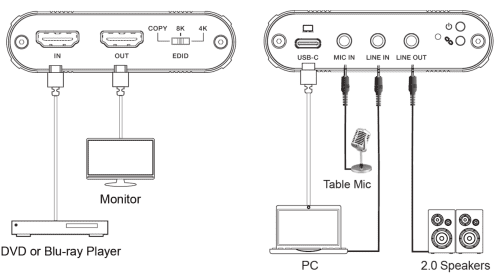
| 1 | HDMI IN | HDMI signal input port, connected to a source device such as DVD or PC with HDMI cable. |
| 2 | HDMI OUT | HDMI signal loopout port, connected to a display device such as TV or monitor with HDMI cable. |
| 3 | EDID dial switch | Used for EDID setting. COPY: Copy video EDID from HDMI loop out port and 2.0CH audio. 8K: FRL10G_8K_HDR, 2.0CH 4K: 4K60(444), 2.0CH |
| 4 | USB-C | USB 3.2 Gen 1 port, connected to a PC for video capture. Besides, the unit can be powered via the connected PC. |
| 5 | MIC IN | Microphone input port, supporting 2pin connector only. |
| 6 | LINE IN | Analog audio input port, supporting 3pin-3.5mm connector only. |
| 7 | LINE OUT | Analog audio output port, supporting 3pin-3.5mm connector only. |
| 8 | Link LED | Light On: The capture software is recognized. Light Flashing: The capture software is working. Light Off: The capture software is not recognized. |
| 9 | Power LED | The LED will light up, when the device is powered on. |
Software Instruction
Take OBS (Open Broadcaster Software) software, windows10 system for example:
- Install“OBS” application software on the computer
- Doubleclick “OBS Studio” shortcut to start the application
- Clickingthe “+”, a up-down menu is displayed

4. Select”Video Capture Device” on the operation interface to create a new video capture device. You can set the properties for the new capture device.

Go on to select “Audio Input Capture” on the operation interface to create a new audio capture. You can set the properties for the new capture.

5.On the Setting page, select “Audio” option. On this page, you need select “Sample Rate” and “Mic/Auxiliary Audio Device” (such as “USB3.0 Audio Capture”). Then click “Apply” and “OK” button.

6.Click the Setting icon, and select “Advanced Audio Properties” option. On the Advanced Audio Properties page, select “Monitor and Output” option, and then click “Close” button.

7.On the Setting page, select “Video” option. Then select “Base Resolution” and “Output Resolution”, and click “Apply” and “OK” button.

8.On the Setting page, select “Output” option. In this page, you can browse record- ing path for capturing video. Select the recording quality, recording format and other options. Then click “Apply” and “OK” button.

9.When all settings are finished, click the “Start Recording” button to start video capture. Click this button again to stop if needed.

10.When the video capture is over, click the “Exit” button to exit the software.

More 4K video capture below optional


