
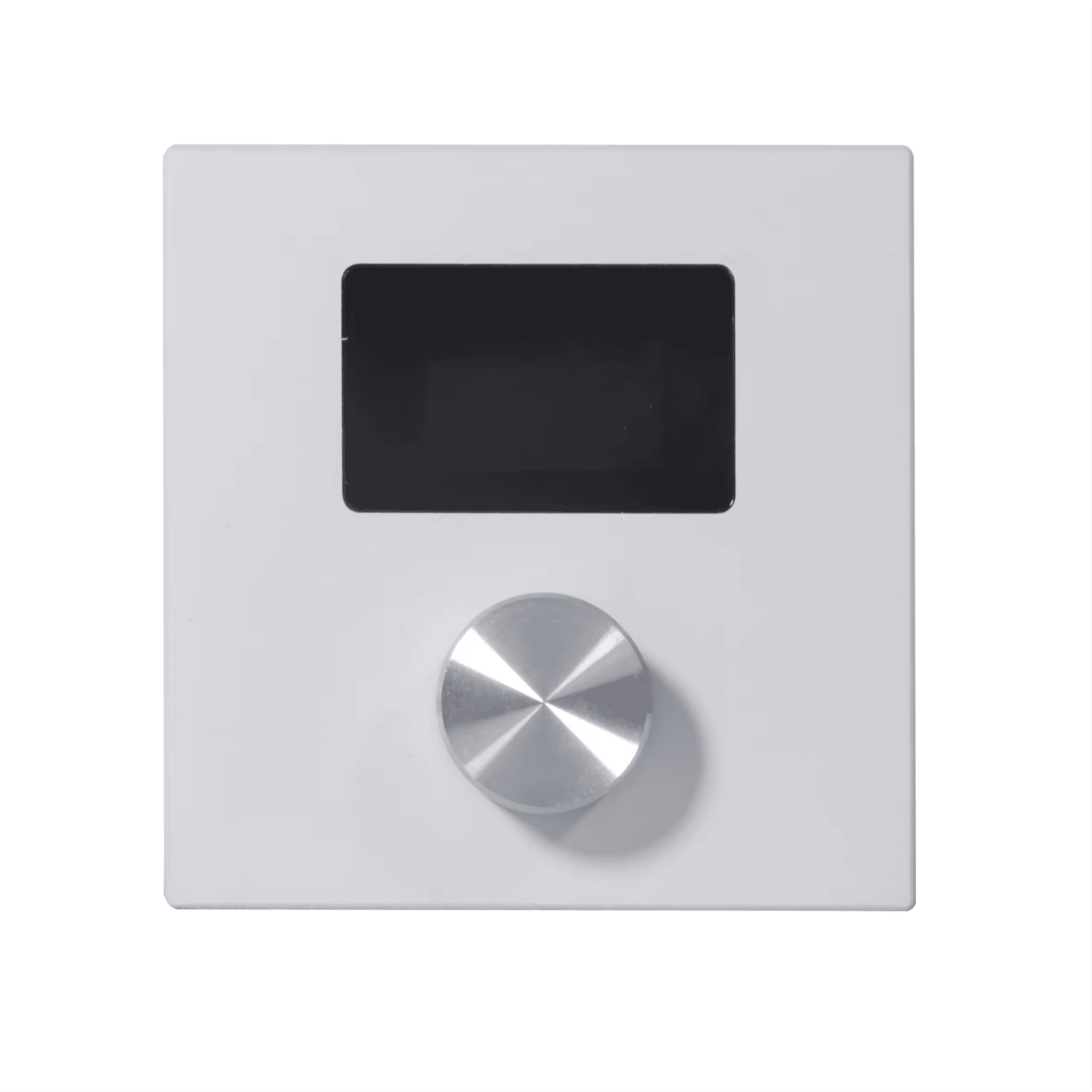
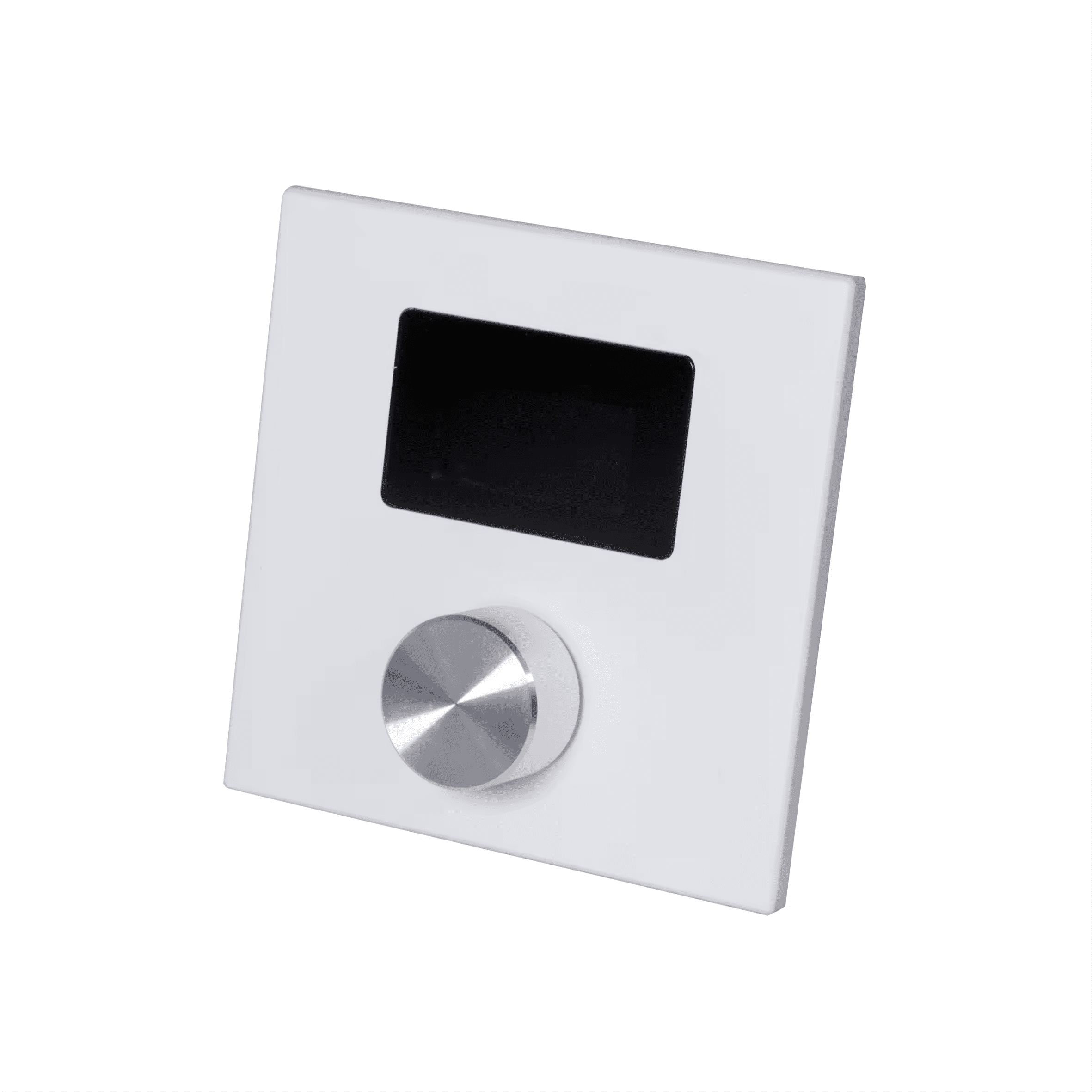
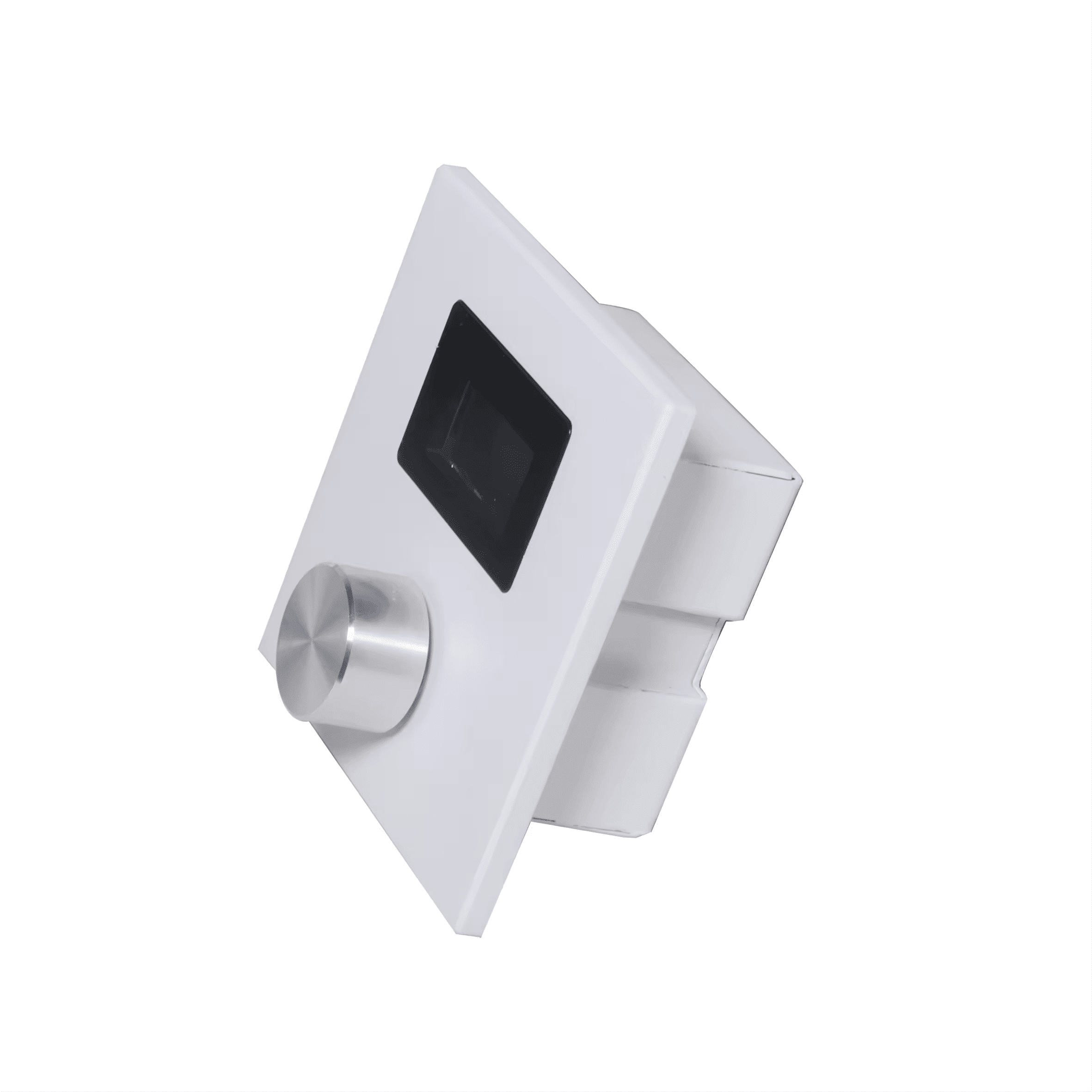
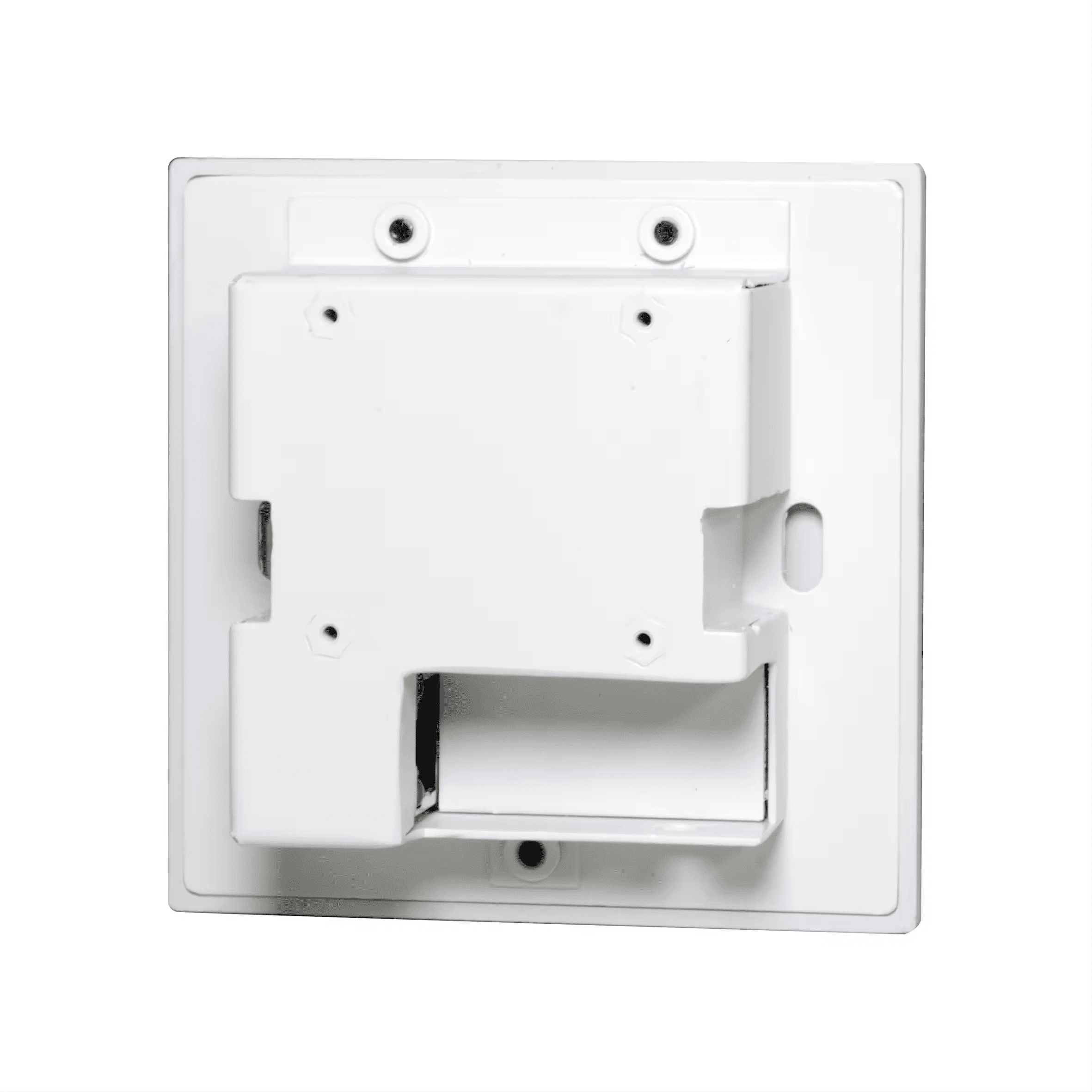
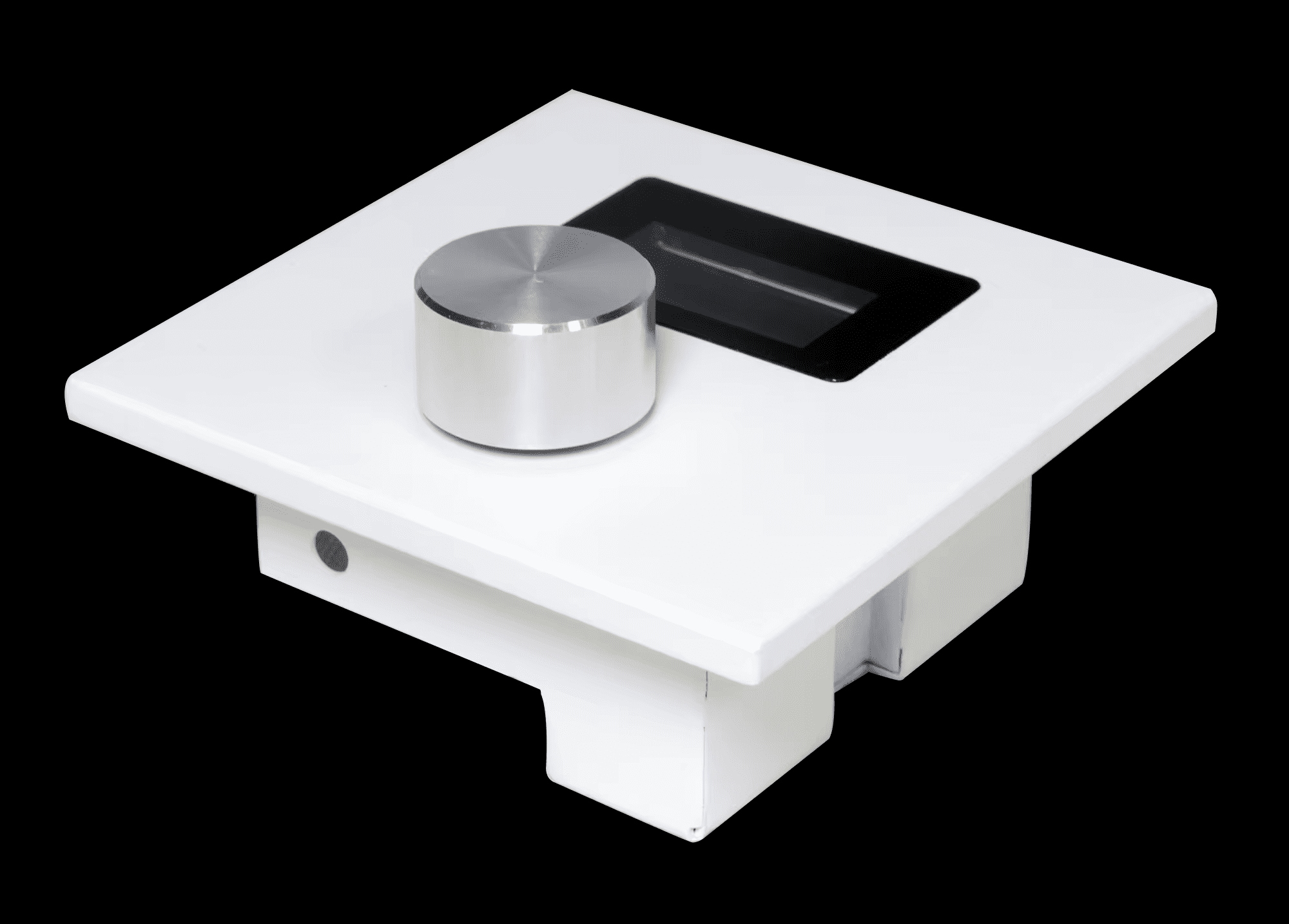
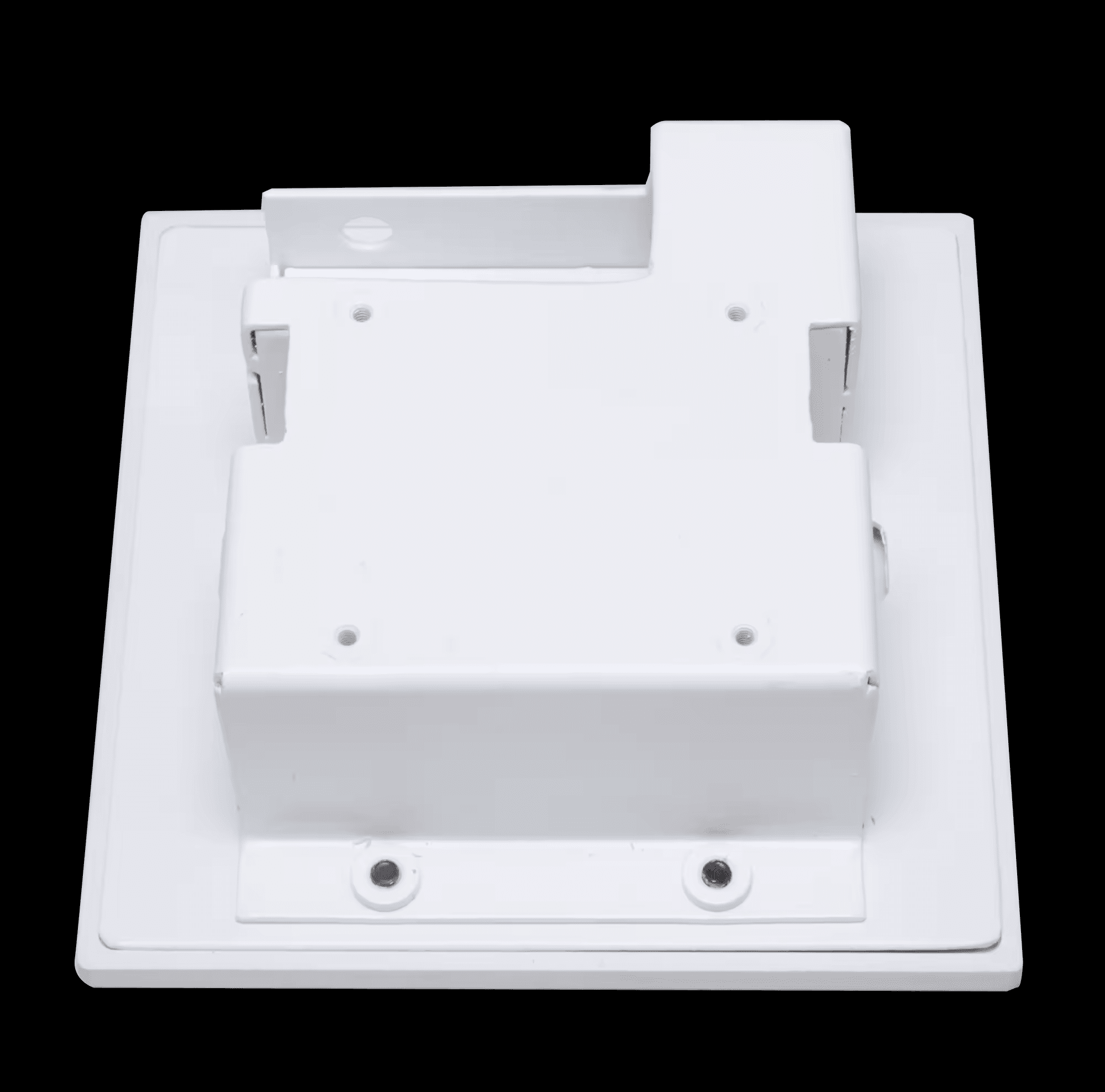
Dante Network Wall Control Panel with 32 menus and 1 Control Knob for DSP Audio Processor
The Panel works with all of our Dante Processor
Introduction
It’s a remote control of the DSP system. It provides a simple and intuitive interface for the end user and can be installed and configured to suit the unique needs of a specific application.
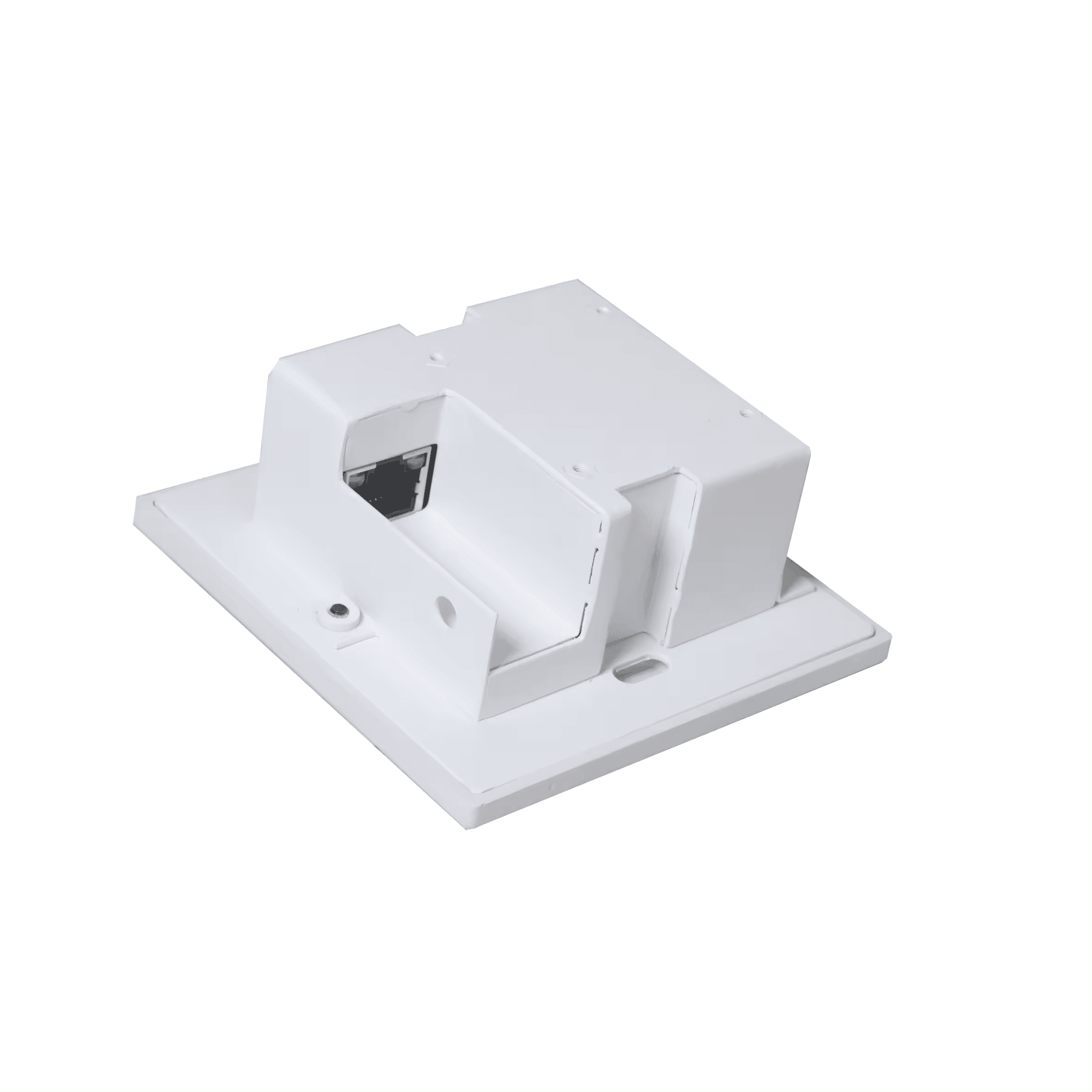
The device is connected via standard CAT-5/6/7 cables and is powered over Ethernet (PoE), eliminating the need for custom cables and local power supplies. Using standard network technology, multiple remote control panels can be connected over large distances. It offers a range of audio control abilities such as volume, mixing, and scene switching. With PoE power supply and UDP communication protocol, this control panel is easy to install and configure for your specific application needs.
It allows for user customization and programming of up to 8 control functions. Its intuitive interface and software make it simple to connect multiple physical panels to the DSP device via network.
Features
✔There is one knob. ✔Support customized functions. ✔Use UDP communication protocol. ✔POE power supply. ✔Support 32 menus.
Specification
Settings
The user can set the key functions in the PC client software interface. Each can be defined as a gain, mute, preset, custom third-party device control, and more.

Offline device: It is suitable for offline editing, and the debugging engineer first configures the panel parameters locally and then downloads them to the online panel. Of course, user can also edit the online panel directly, drag it out in the online panel column and doubleclick to edit it in the panel design area.
Notice that there is a small circle on both the panel and the device, click on the small circle to pull up a line and select the destination device, thus establishing a connection between the two devices.
Double-click the panel in the design area to enter the panel configuration interface, the configuration of the two panels will be described separately below. After the configuration is complete, click the download icon in the toolbar to download the panel configuration to the hardware.

Panel operation indicators:
1. The button light is constantly on, indicating that the button is configured for mute or route on.
2. The button light flashes to indicate that the button is configured with the gain function, and the configuration knob is used together to adjust the gain of the channel. The 13 lights around the knob represent the gain, which turns on and off as the gain is magnitude. Full off represents a gain of -72dB, and full brightness represents 12dB.
3 . The button light lights up when pressed, indicating that the button is configured with a preset or command-type function.


